User Manual – Effortlessly Healthy
Introduction
Welcome to Effortlessly Healthy, Rochester’s award-winning meal delivery service, proudly serving fresh, chef-prepared meals for over 12 years. Recognized as a Top 100 Company and the #8 fastest-growing MWBE in Rochester (2024), we’re also honored to be voted among the Top 3 Food Trucks in 2023.
With hundreds of positive reviews, we’re known for delivering fully-prepared, locally sourced meals right to your door. Our menu supports a variety of dietary needs, including gluten-free, dairy-free, vegetarian, low-sodium, and diabetic-friendly options.
This guide will walk you through our easy online ordering process—from selecting your plan to placing your order—so you can enjoy healthy eating, made effortless.
Order Flow – Effortlessly Healthy
Welcome to Effortlessly Healthy! Here’s a step-by-step guide to help you place your order seamlessly through our website.
1: Visit the Homepage
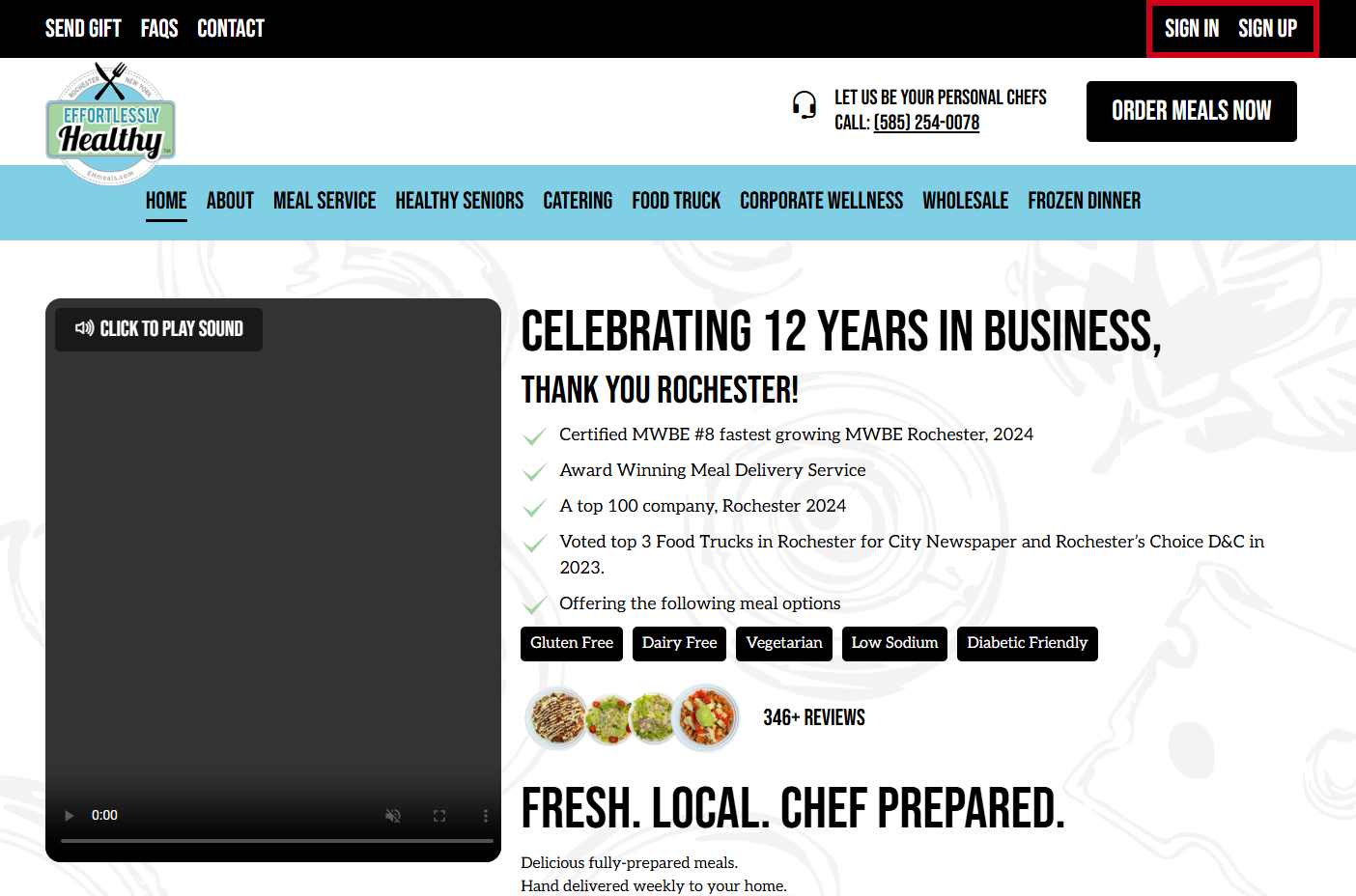
When you land on the homepage, you will see a preview of our offerings along with two primary buttons located at the top right:
- Sign In – For returning customers
- Sign Up – For new customers
2: Account Access
➤ For New Customers:
Click on Sign Up to create an account.
After successful registration, you can proceed to place your order.
➤ For Returning Customers:
Click on Sign In and log in with your
credentials.
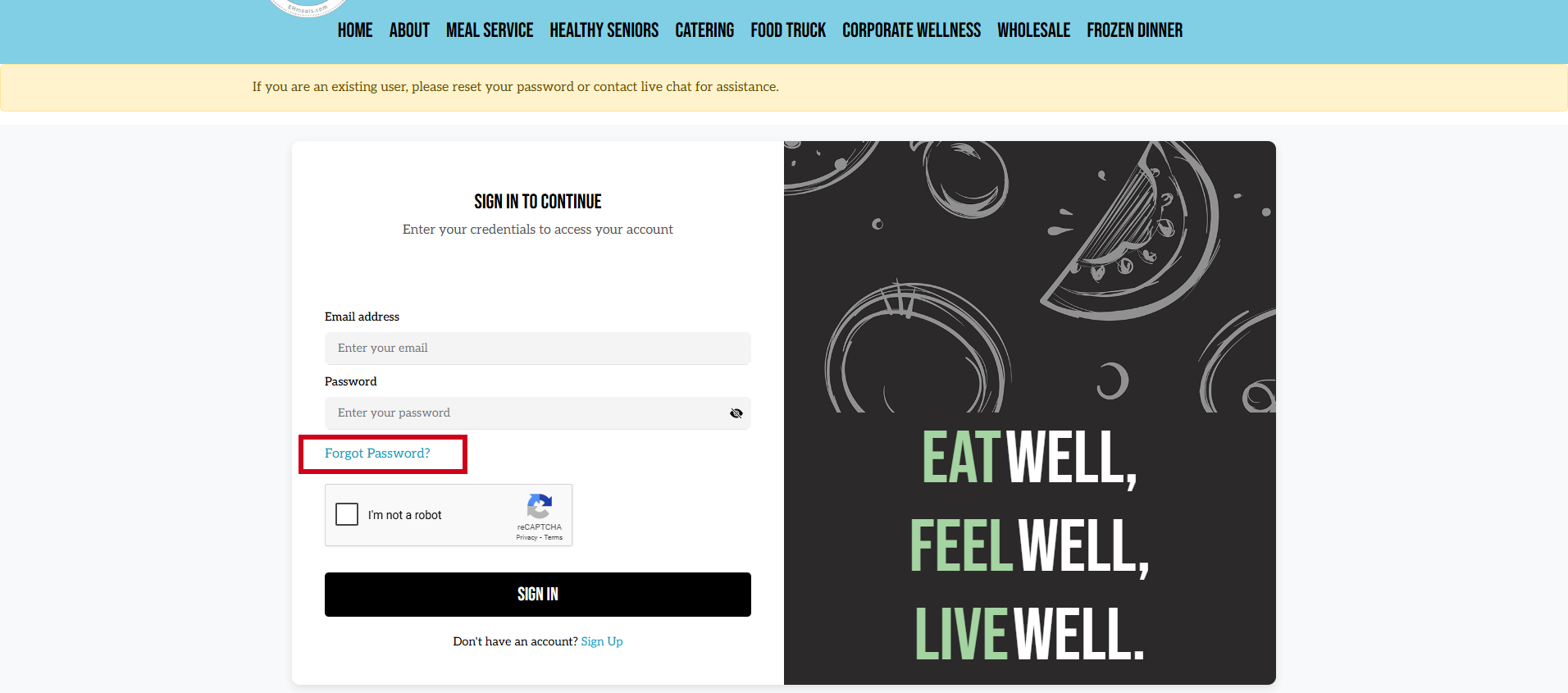
If you've forgotten your password, click “Forgot Password” on the Sign In page.
Password Reset Instructions (For Previous EhMeals Customers):
- If you're an existing EhMeals customer visiting our new website for the first time: Click Sign In
- Select "Forgot Password" to reset your password.
- You will receive an email on your registered email address with a reset link and instructions.
- Follow the instructions to set a new password and regain access to your account.
3: Start Ordering
You can begin your order in two ways:
From the Homepage:
Sign up or sign in first, then click on the “Order Meals
Now” button. This will take you directly to the meal selection page.
Placing Your Order:
After selecting your meals, click “Place Order
Now.”
If you're not logged in, a pop-up will appear prompting you to Sign Up or Sign In to complete your order.
4: Follow the 5-Step Order Process
Our order process consists of 5 simple steps:
Step 1: Choose Your Plan
You can choose from four different meal plan types:
- Weekly Meals
- Breakfast, Lunch & Dinner
- Family Style
- Bulk Food
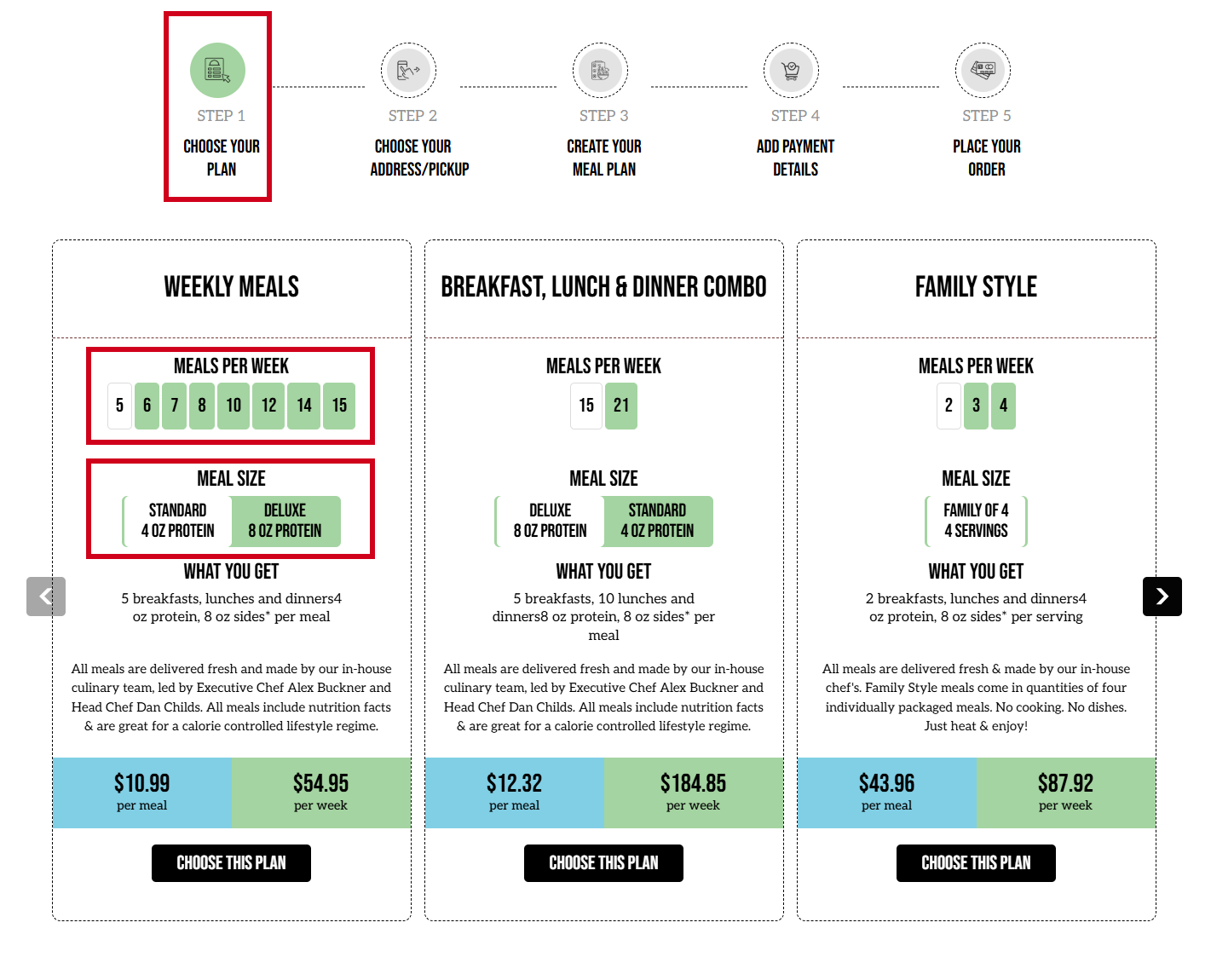
Each plan includes a range of variants based on how many meals you’d like per week. For example:
Weekly Meals Plan Variants:
6, 7, 8, 10, 12 meals per week
This means you can select a plan to receive 6 meals per week, 7 meals per week, and so on.
Each plan also allows you to choose your meal size:
- Standard
- Deluxe
Standard size is ideal for regular portions, while Deluxe offers larger, more filling meals.
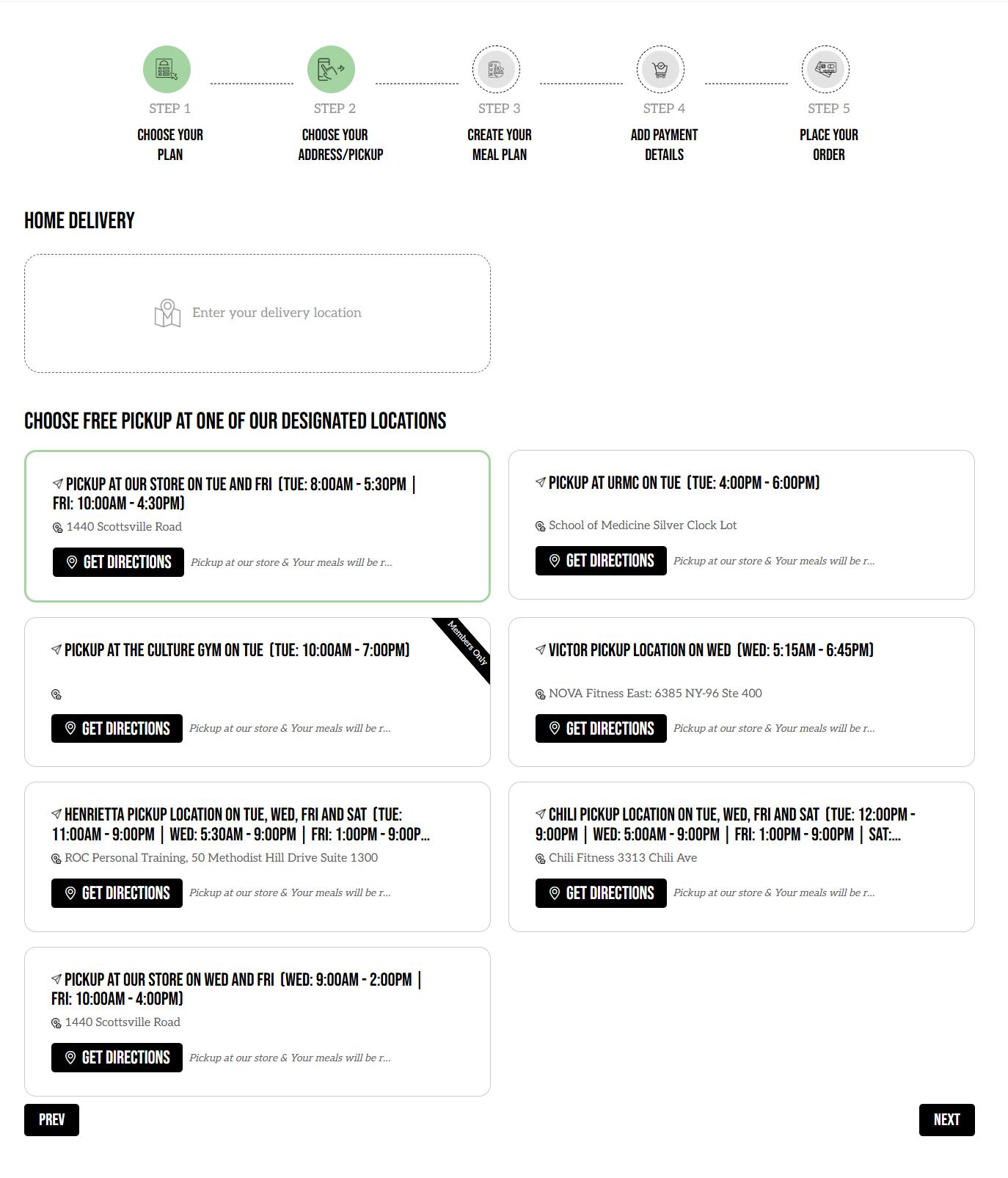
Step 2: Choose Your Address or Pickup Location
In this step, you have two options:
Enter a Delivery Address:
If you want meals delivered to your door, simply add your
complete delivery address.
OR
Select a Pickup Location:
Choose one of the available pickup points listed on the
page.
After selecting either delivery or pickup, click the Next button to continue.
Your
address or pickup choice will be saved automatically.
Step 3: Create Your Meal Selection
This step is divided into three phases to help personalize your menu:
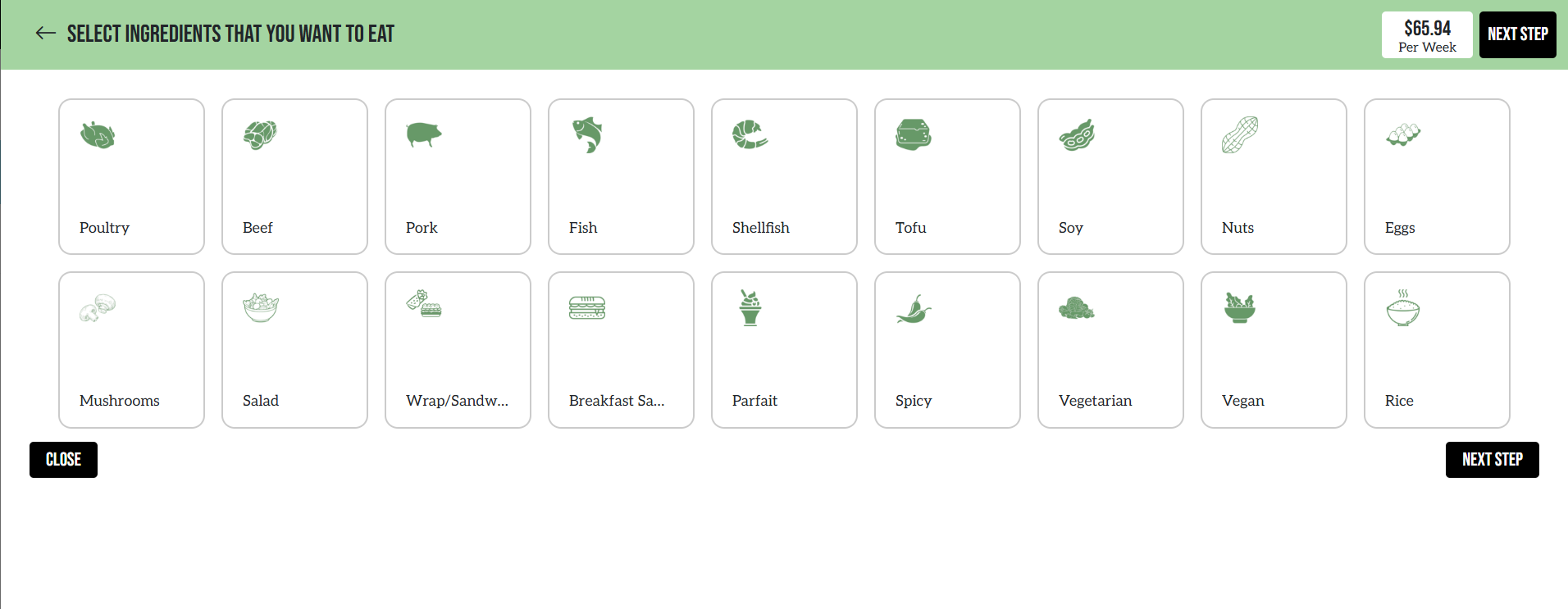
Select Ingredients:
Choose the ingredients you prefer or want included in your meals.
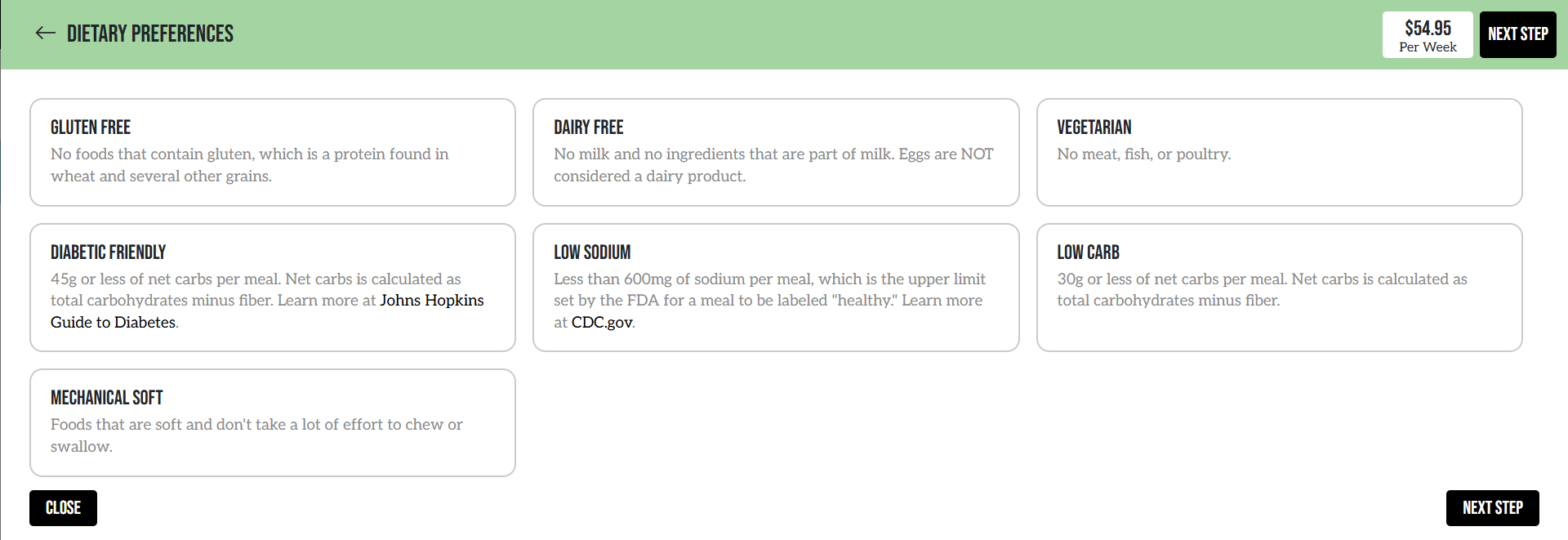
Select Diet Preferences:
Pick dietary preferences (e.g., gluten-free, keto, low-carb)
to
match your health goals.
Select Meals:
Based on the ingredients and diets you've selected, you’ll see a
filtered
list of meals. Select the meals you’d like to include in your plan.
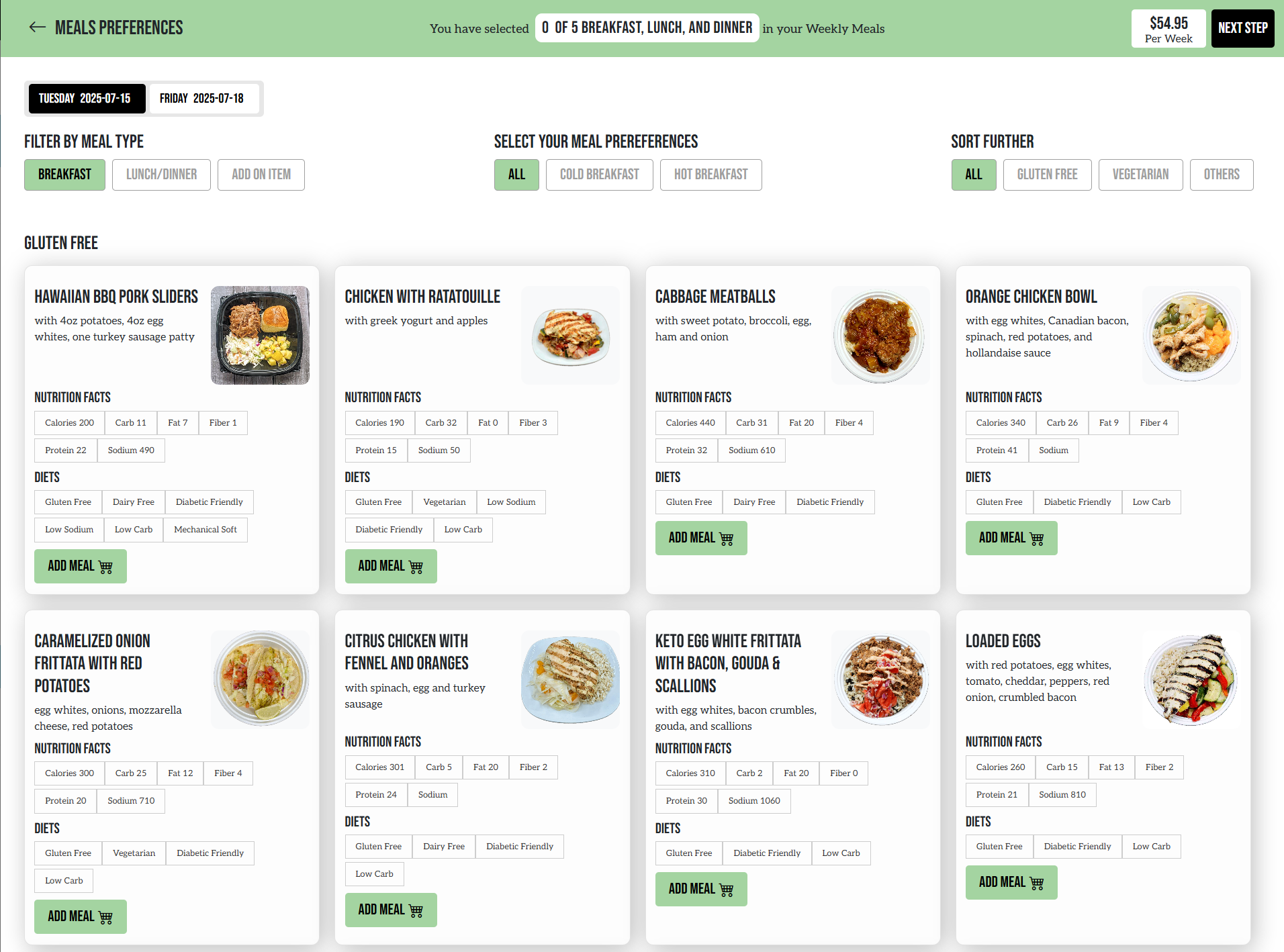
After selecting all your required meals, click the Next button.
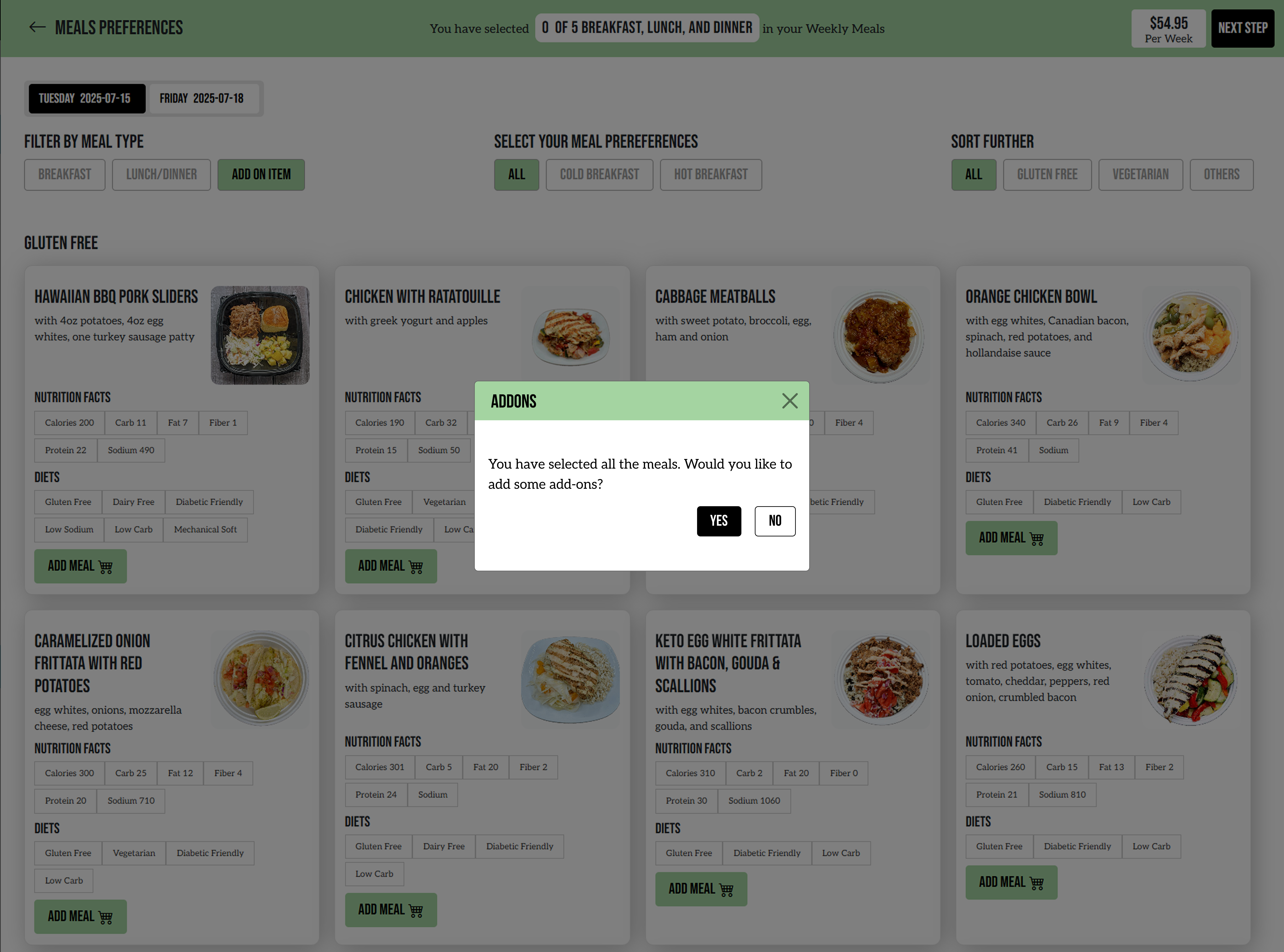
🍽️ Add-Ons Prompt:
If you haven’t added any add-ons and try to proceed, a pop-up
will
appear:
“You have selected all the meals. Would you like to add some add-ons?”
Click Yes if you want to browse and add optional items.
Click No to skip and proceed without add-ons.
Step 4: Add Payment Details
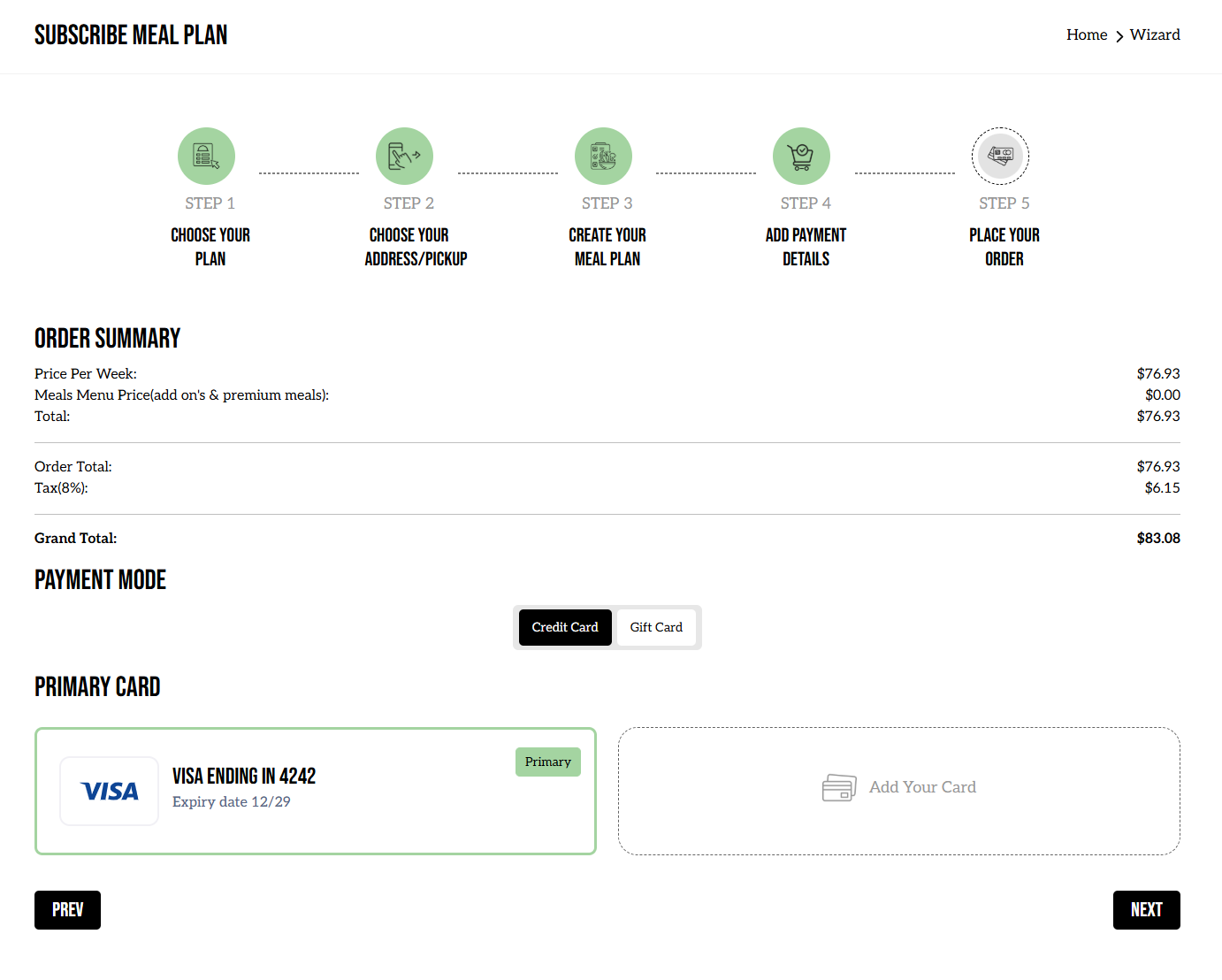
On this page, you'll see your Order Summary, including:
- Price Per Week
- Meals Menu Price (add-ons & premium meals)
- Total
- Order Total
- Tax (8%)
- Grand Total
Available Payment Modes:
- Credit Card
Enter your card information for one-time or recurring billing. - Gift Card
Two gift card options are available:- Gift Cards Only – Use a gift card to fully pay.
- Auto Renew with Gift Card – Enables automatic subscription renewal.
Note: If you choose Auto Renew, you must add a valid credit card as backup, even if using a gift card.
After entering your payment details, click Next to proceed to the final step.
Step 5: Place Your Order
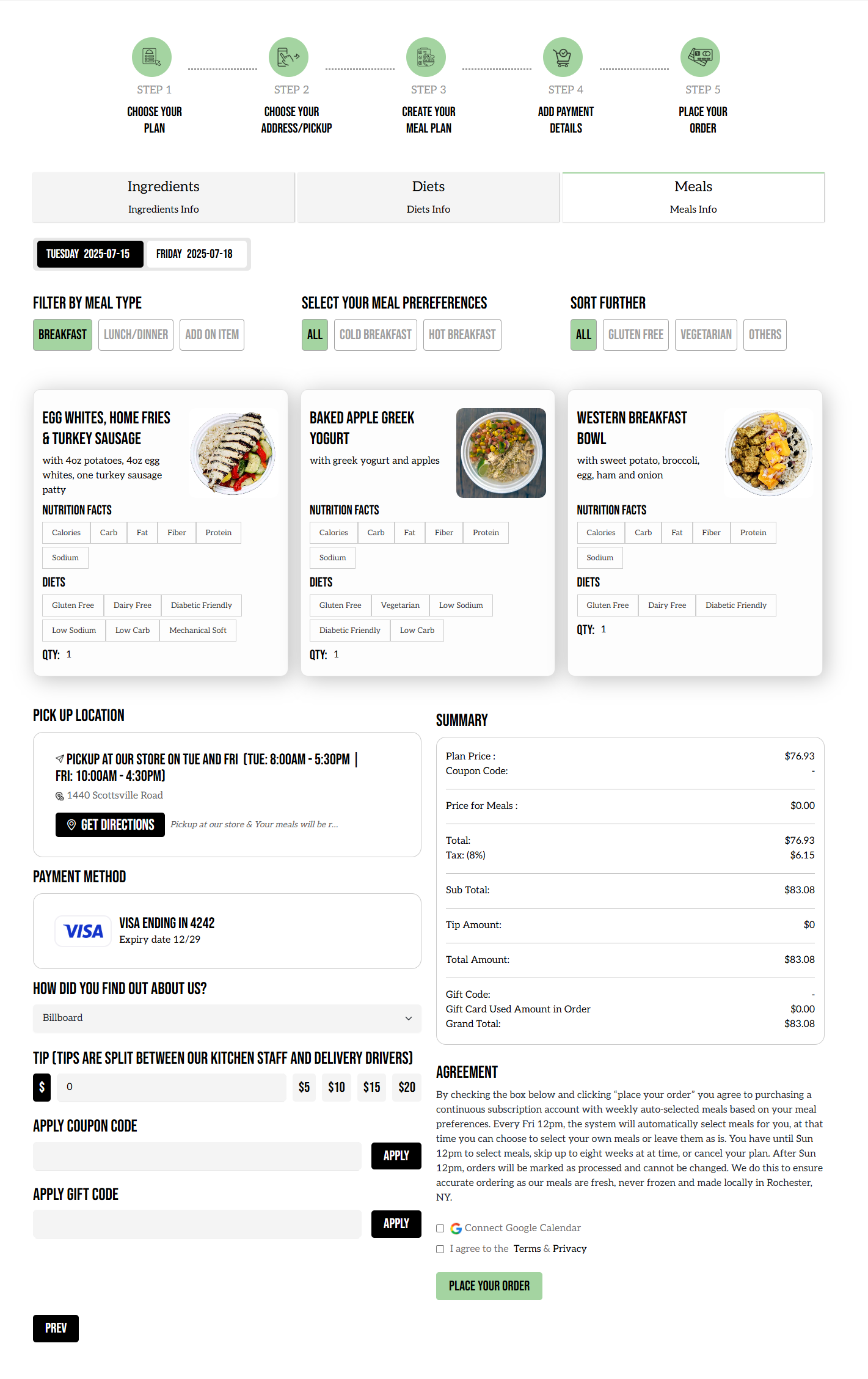
On the final step, you’ll review all your selections before confirming:
- Selected Ingredients
- Selected Diets
- Your Meal List
- Pickup Location
- Full Order Summary
You can also:
- Enter a Gift Card Code
- Apply a Coupon/Discount Code
- Review and agree to the Terms & Conditions
Once everything looks good, click the “Place Your Order” button to finalize your order.
Second Order Flow (Returning Customers)
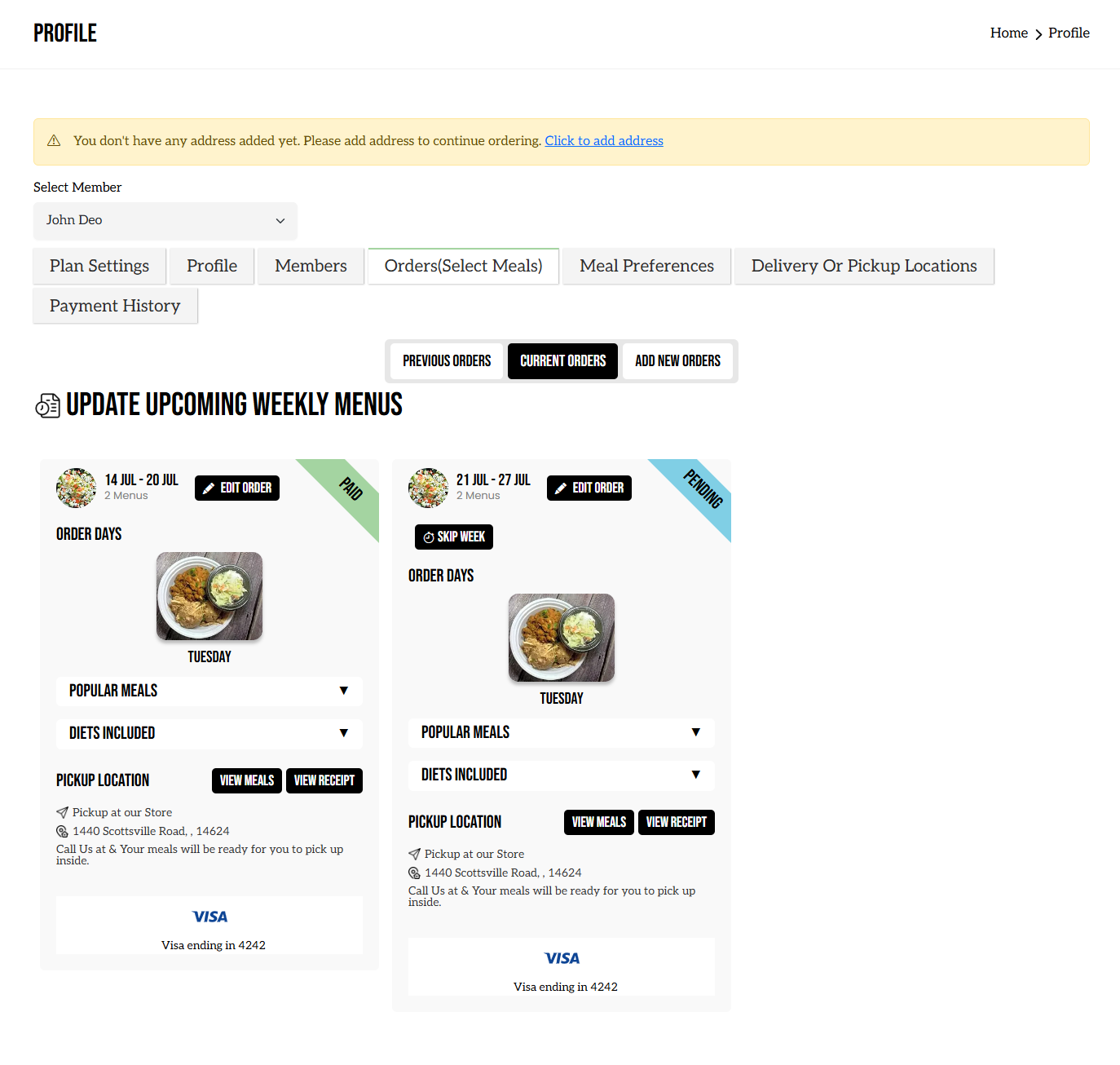
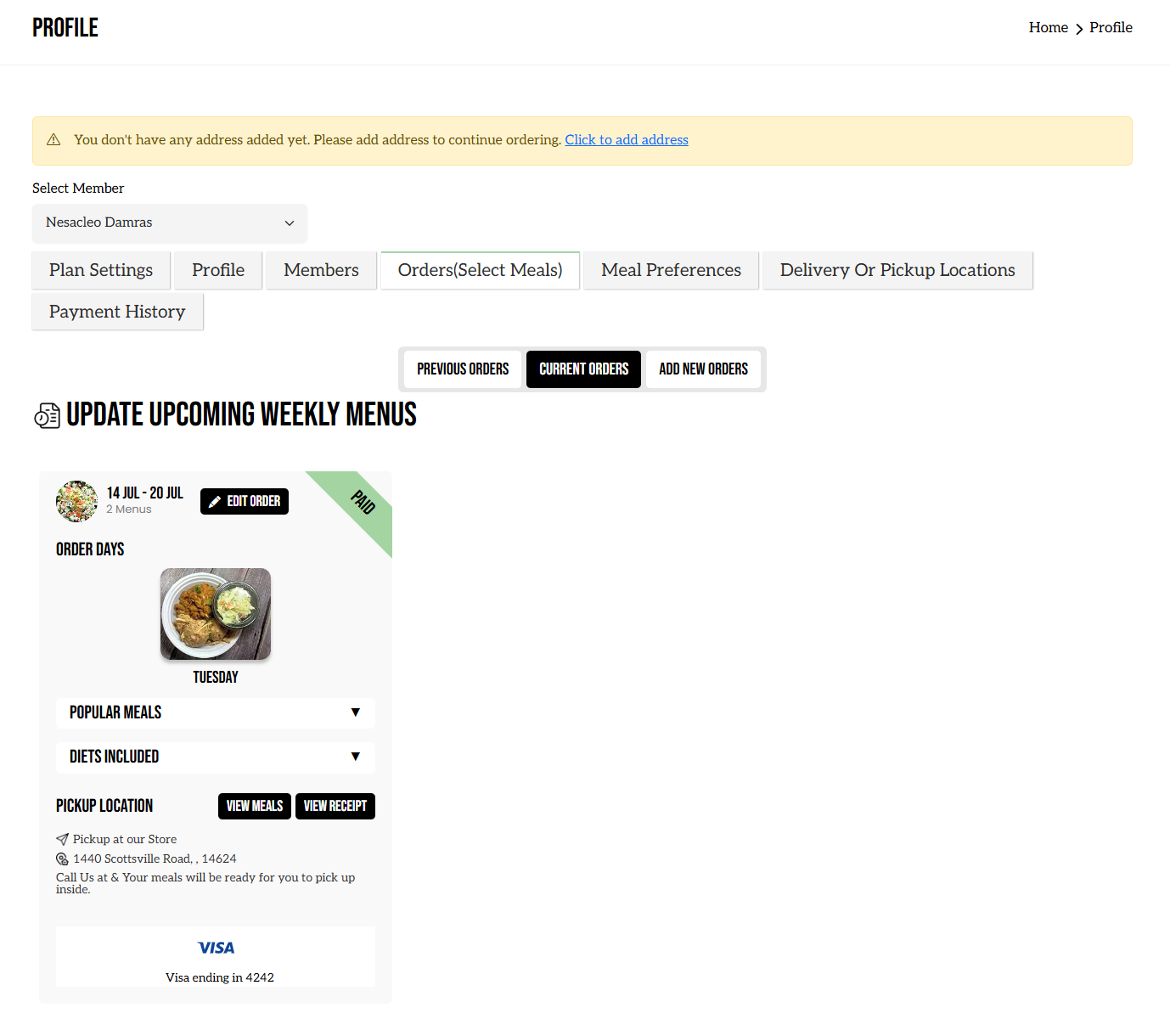
Once a customer completes their first order, they are automatically redirected to their profile under the Orders tab.
In future logins, any user who has already completed their first order will also be automatically taken to the Orders tab in their profile, skipping the first-time order wizard entirely.
⚠️ Note: Only first-time users have access to the step-by-step order wizard. For returning users, this flow is restricted.
📂 Order Management Tabs:
- Current Order
Displays the user's active order that is currently being processed or is scheduled for delivery. - Previous Orders
Once the current order is delivered, it is automatically moved to this section for record-keeping and reordering reference. - Add New Orders
Users can place their second and any subsequent orders through this section.
Clicking on Add New Orders will initiate the plan selection and meal customization flow tailored for returning customers.
1. Placing a Second Order:
To place another order:
- Navigate to the Add New Orders tab.
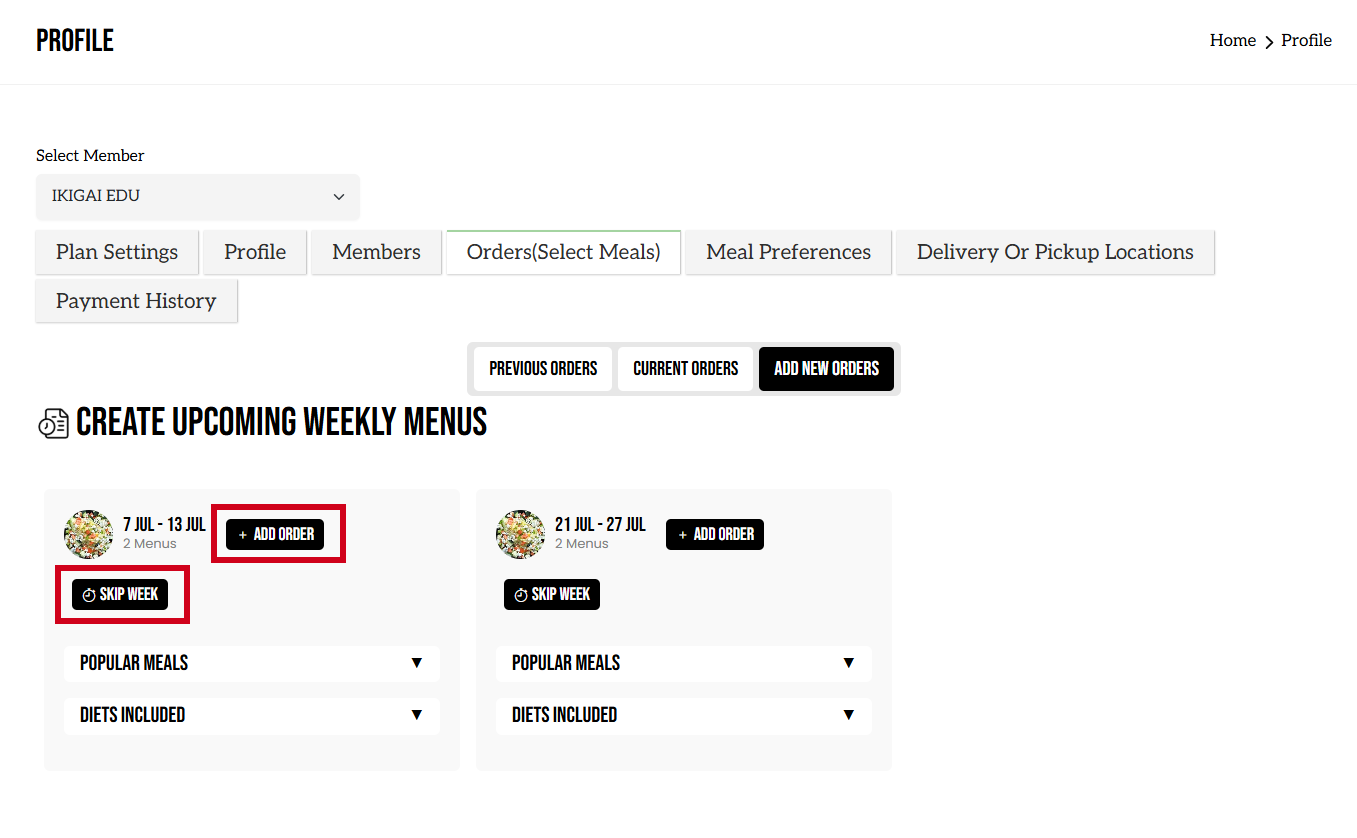
- You’ll see a list of available menus by week — each menu is displayed along with its date.
- To place an order for a specific week, click the “Add Order” button shown on that week’s menu.
- If you do not wish to receive meals for a particular week, click the “Skip Week” button to bypass it.
2. Choose Delivery or Pickup:
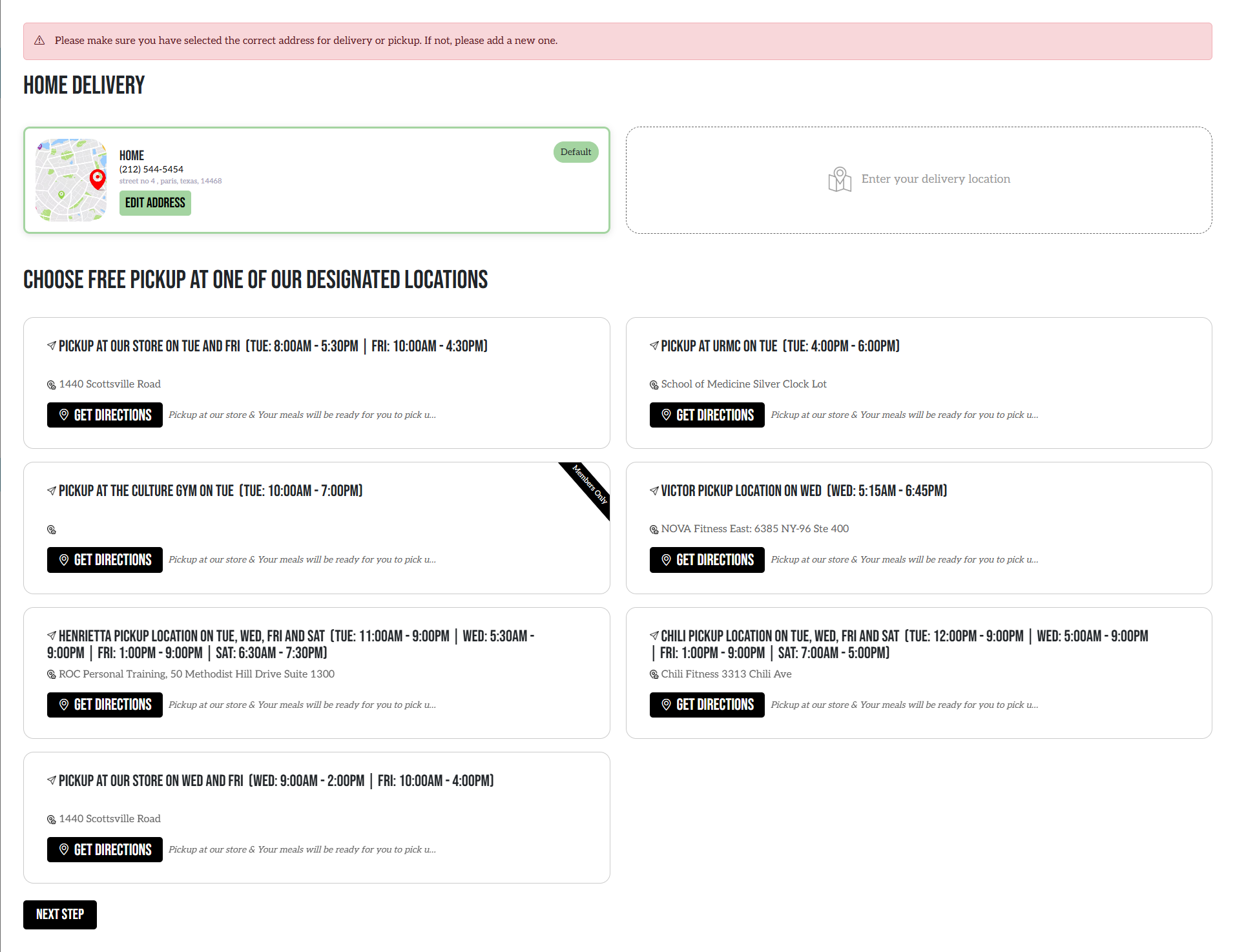
After selecting a menu, the user will be prompted to choose a home delivery address or a pickup location:
- Users can choose from their previously saved addresses.
- If needed, they can add a new delivery address and optionally set it as the default.
- After making a selection, click the Next button to continue.
3. Create Your Meal Selection:
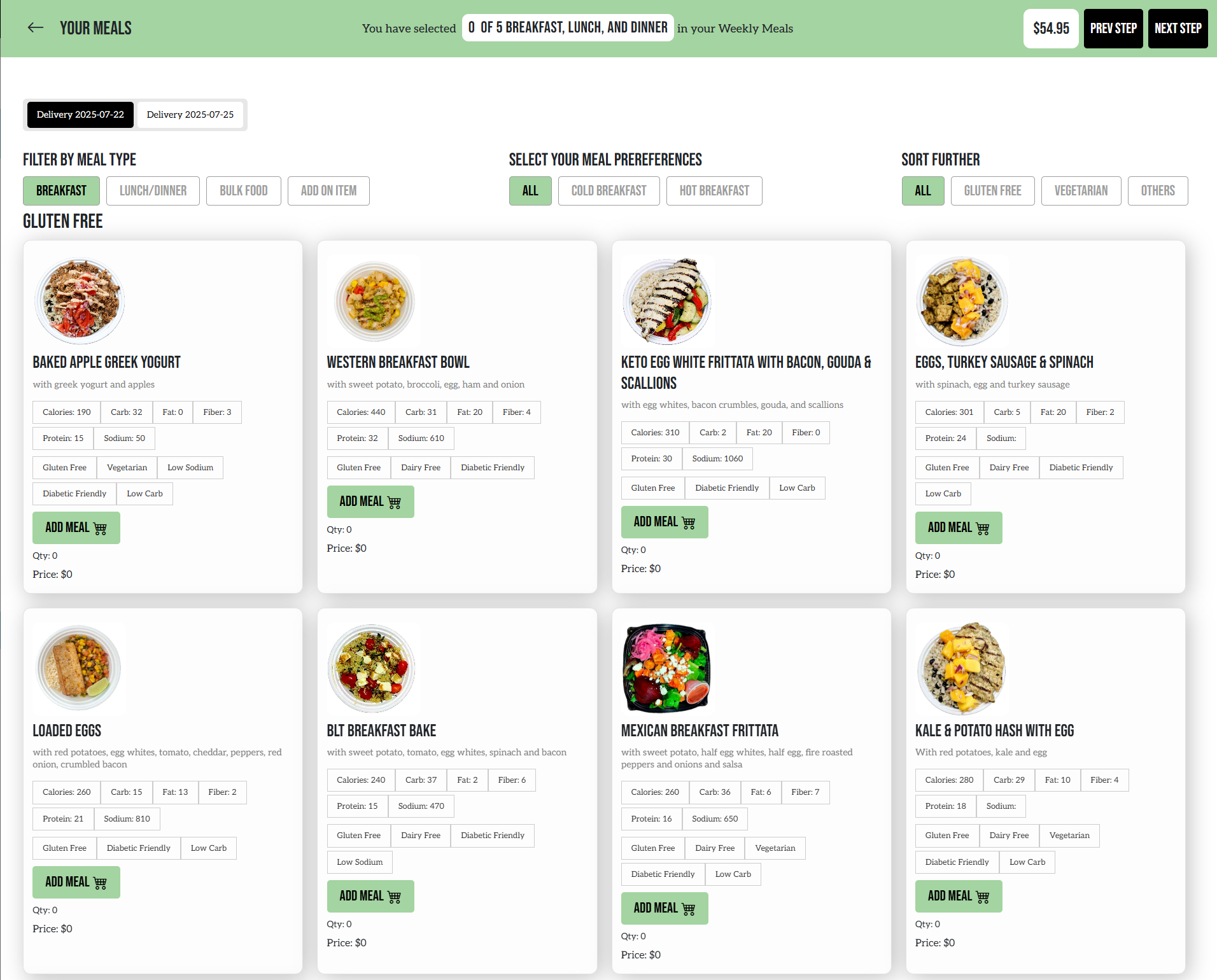
After choosing a delivery method, the user proceeds to the meal selection step, which is customized based on the plan variant they chose when clicking “Add Order” (e.g., 6, 8, 10 meals per week).
In this step:
- Select meals according to the plan size (e.g., 6, 8, 10 meals/week).
- Additionally, users can choose to add:
- Bulk Meals
- Add-Ons Meals
💰 Important: Bulk meals and add-ons are optional but come with additional charges. These items are not included in the base plan price and will be added to the total at checkout.
🍽️ Add-Ons Prompt:
If you haven’t added any add-ons and try to proceed, a pop-up will appear:
“You have selected all the meals. Would you like to add some add-ons?”
4. Add Payment Details:
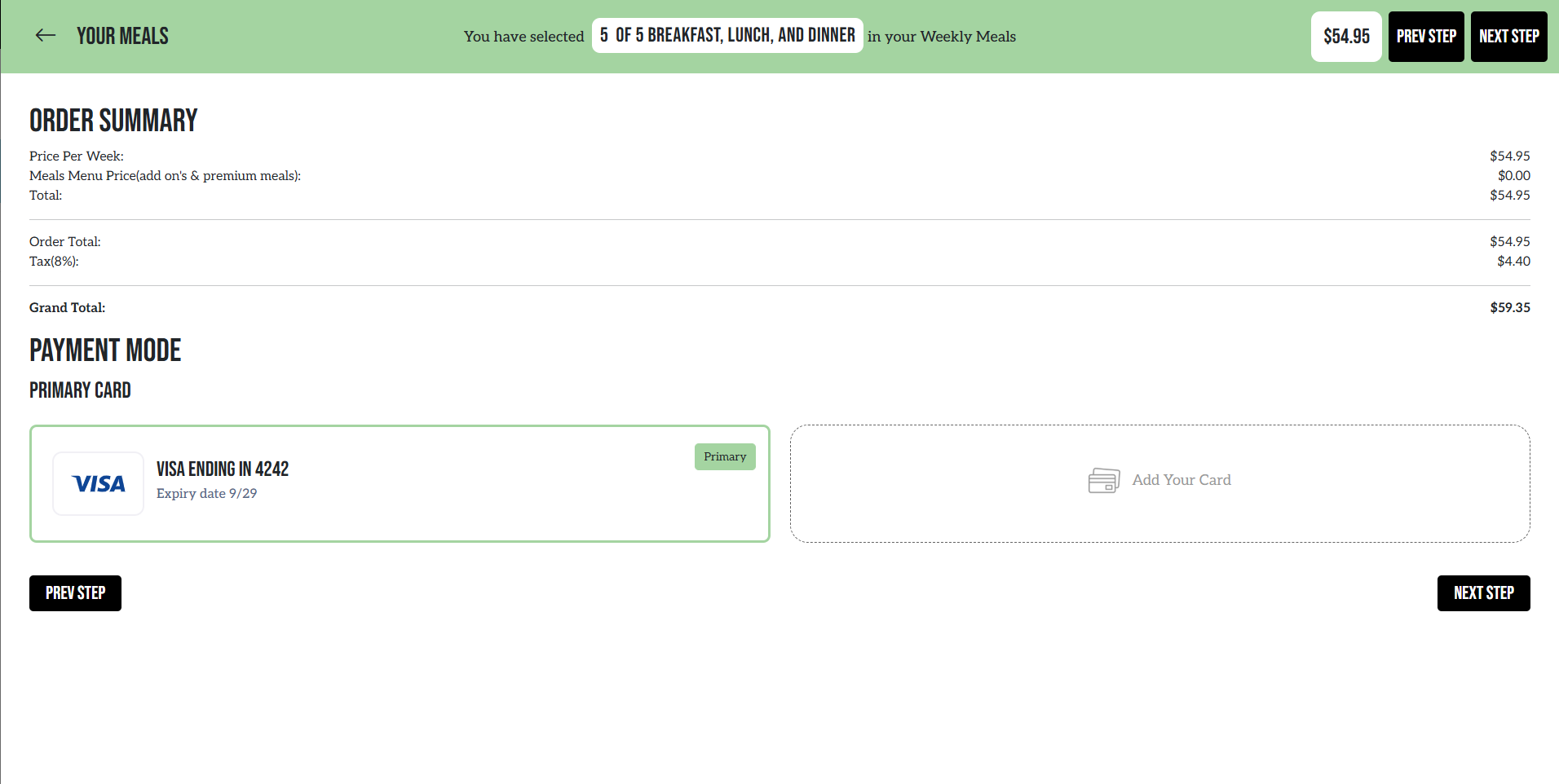
On this step of placing a second order, the user is shown an Order Summary that includes all pricing components and billing options.
📊 Order Summary Includes:
- Price Per Week – Based on the selected plan variant
- Meals Menu Price – Cost of selected meals including:
- Add-ons
- Premium or bulk items
- Delivery Fee – If applicable
- Order Total – Sum of base plan and additional items
- Tax (8%) – Auto-calculated
- Grand Total – Final amount to be paid after taxes and delivery charges
💳 Payment Options:
The user will also see their saved default payment card on this screen. They can:
- Use the existing default card.
- Add a new card.
- Set any newly added card as the default for future orders.
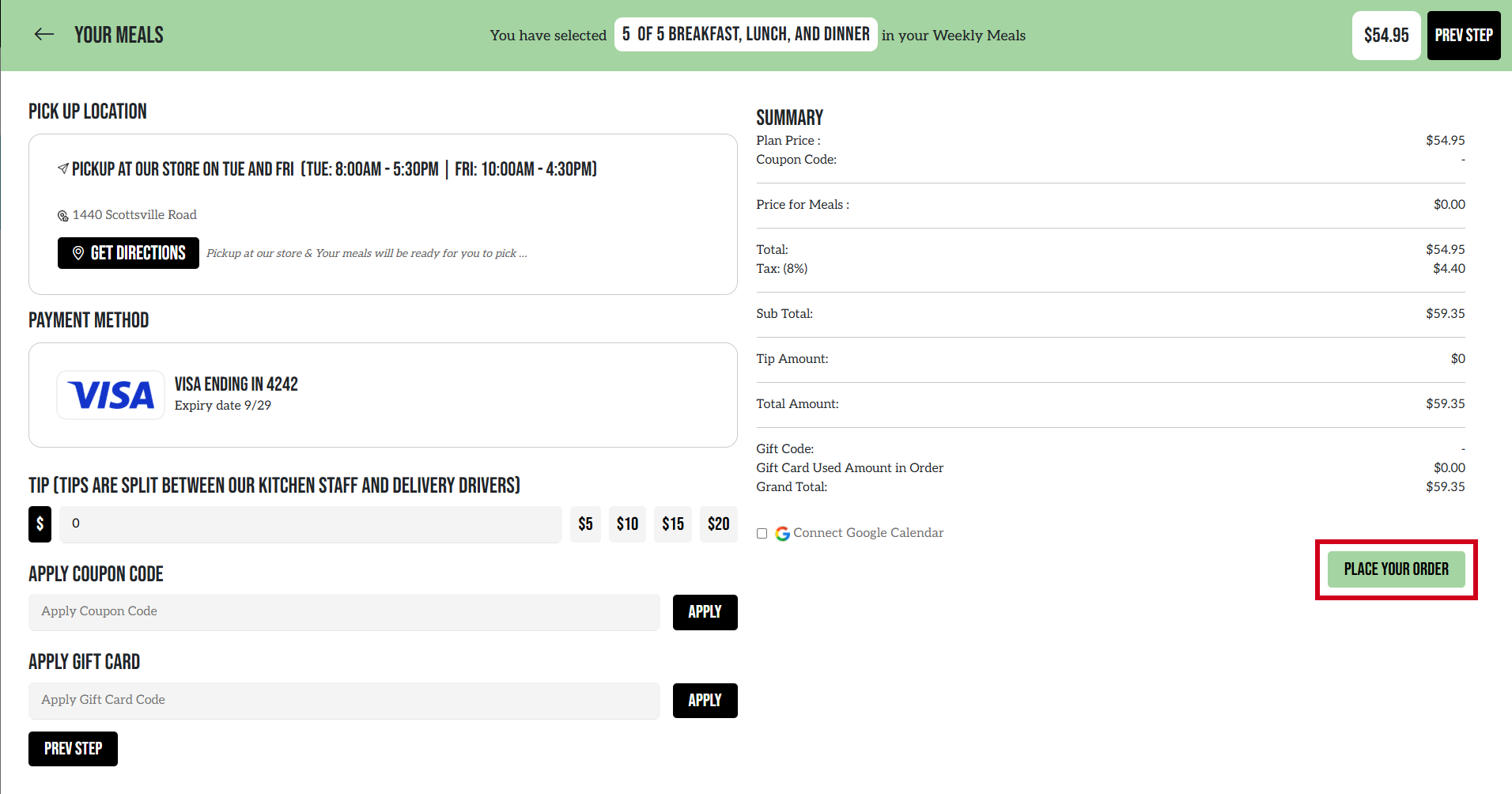
5. Place Your Order:
On the final step, you’ll review all your selections before confirming:
- Selected Ingredients
- Selected Diets
- Your Meal List
- Pickup Location
- Full Order Summary
You can also:
- Enter a Gift Card Code
- Apply a Coupon/Discount Code
- Review and agree to the Terms & Conditions
Once everything looks good, click the “Place Your Order” button to finalize your order.
6. After Placing the Second Order
Once the second order is placed, it will appear under the Current Order tab with a status of “Pending.” At this point, the user has a few options to manage the order:
📝 Edit Order Option:
Users can edit the pending order to make changes to:
- Meal selections
- Add-ons or bulk items
⏭️ Skip Week Option:
The user can click the “Skip Week” button if they decide not to receive the order.
When skipped, the order will be removed from the Current Order section and moved back to Add New Orders.
To receive meals for that week again, the user must recreate the order through the Add New Orders tab.